
How to connect Poloniex to Cryptio
You can connect Poloniex to Cryptio using an API key. This allows Cryptio to automatically sync your balances and full transaction history from Poloniex into your workspace.
Step 1: Generate Your API Key in Poloniex
Log in to your Poloniex account.
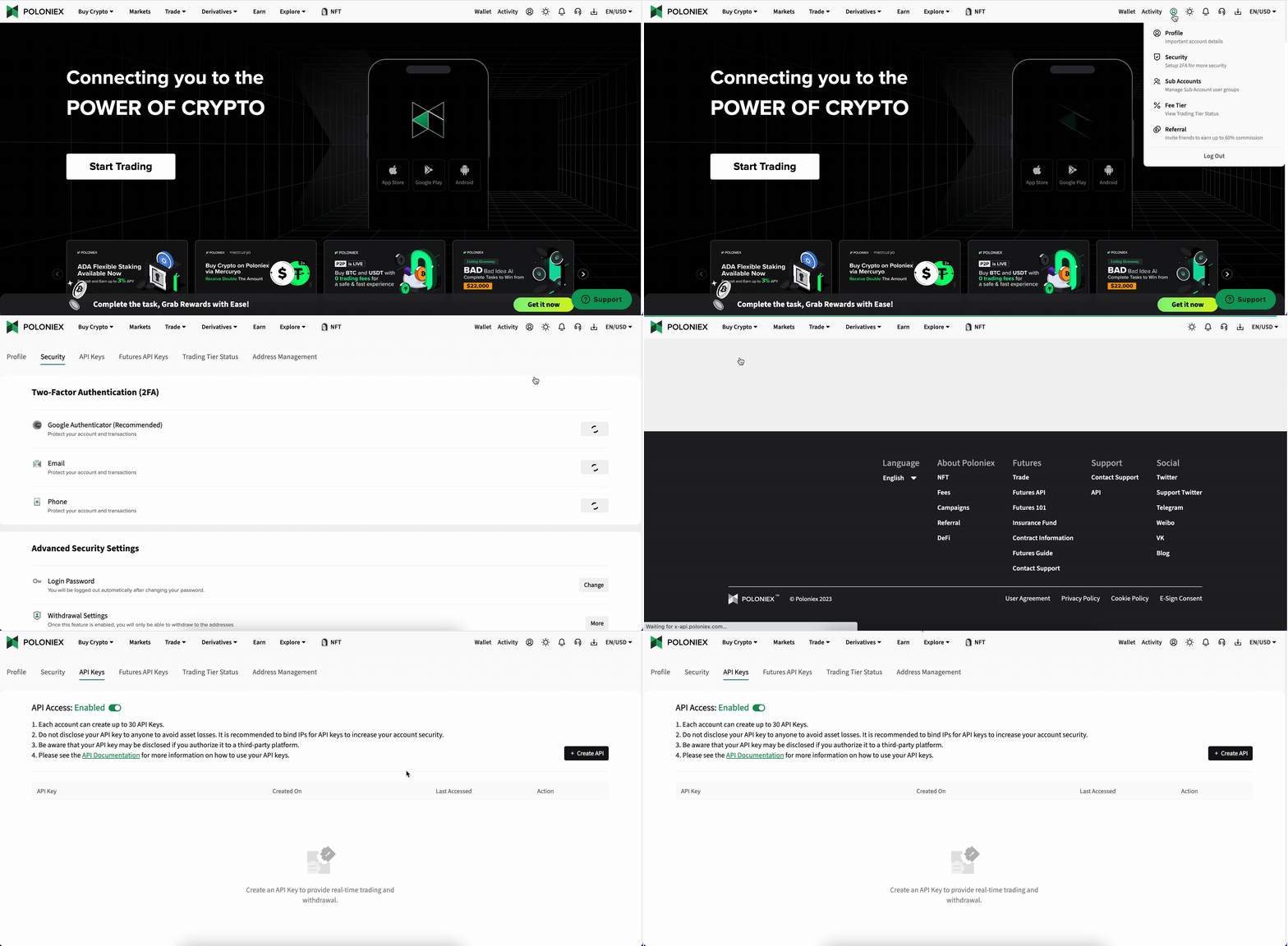
In the top right, hover over the profile icon and select Security.
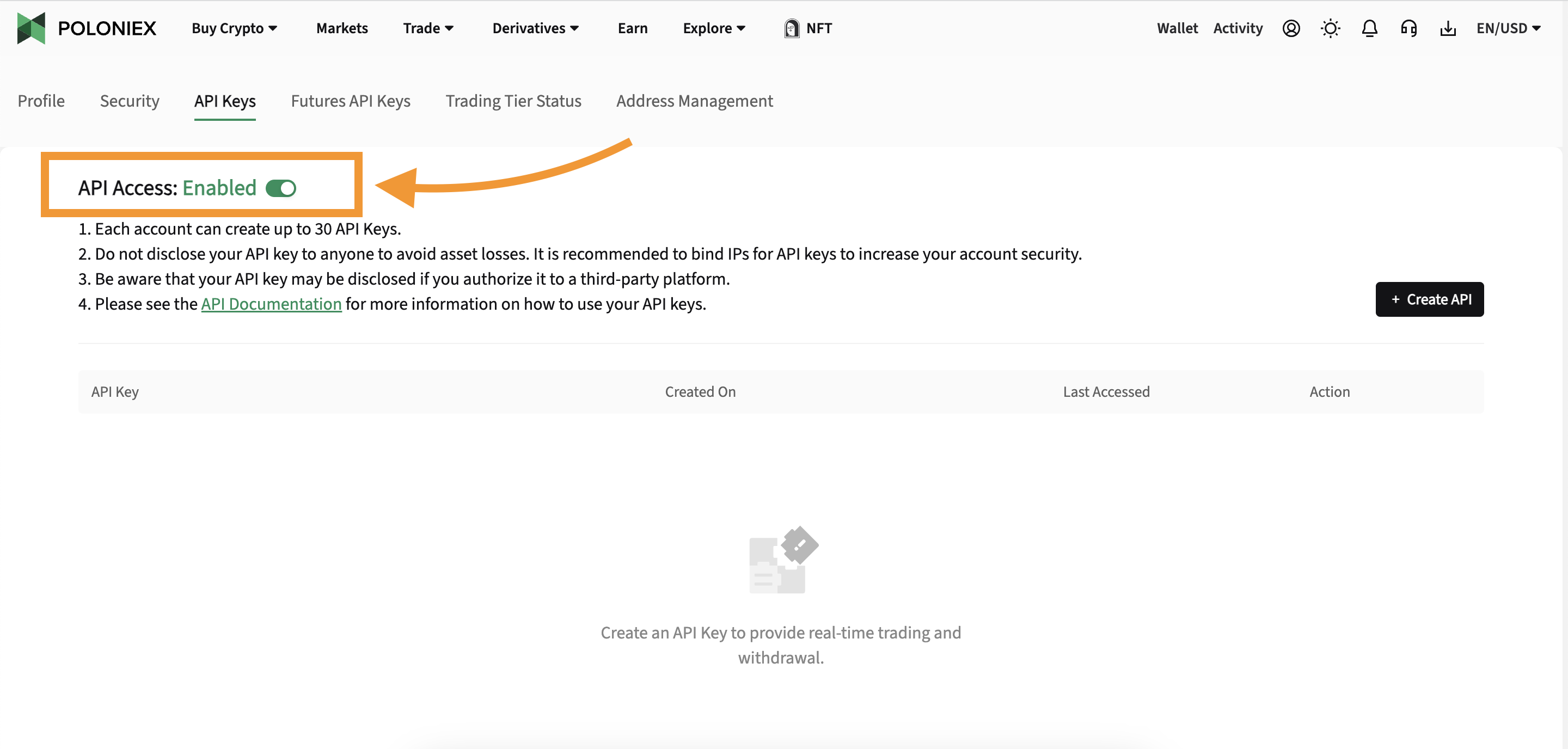
Go to the API Keys subtab. If you haven’t created any keys yet, you’ll see an empty state.
Click Enable API, then enter your 2FA code. Confirm the action via the email sent from
do-not-reply@poloniex.com(expires in 15 minutes).Once the API is enabled, click Create New Key.
Enter your 2FA code again and confirm the request via the email from
do-not-reply@poloniex.com.After confirming, Poloniex will display your API Key and API Secret.
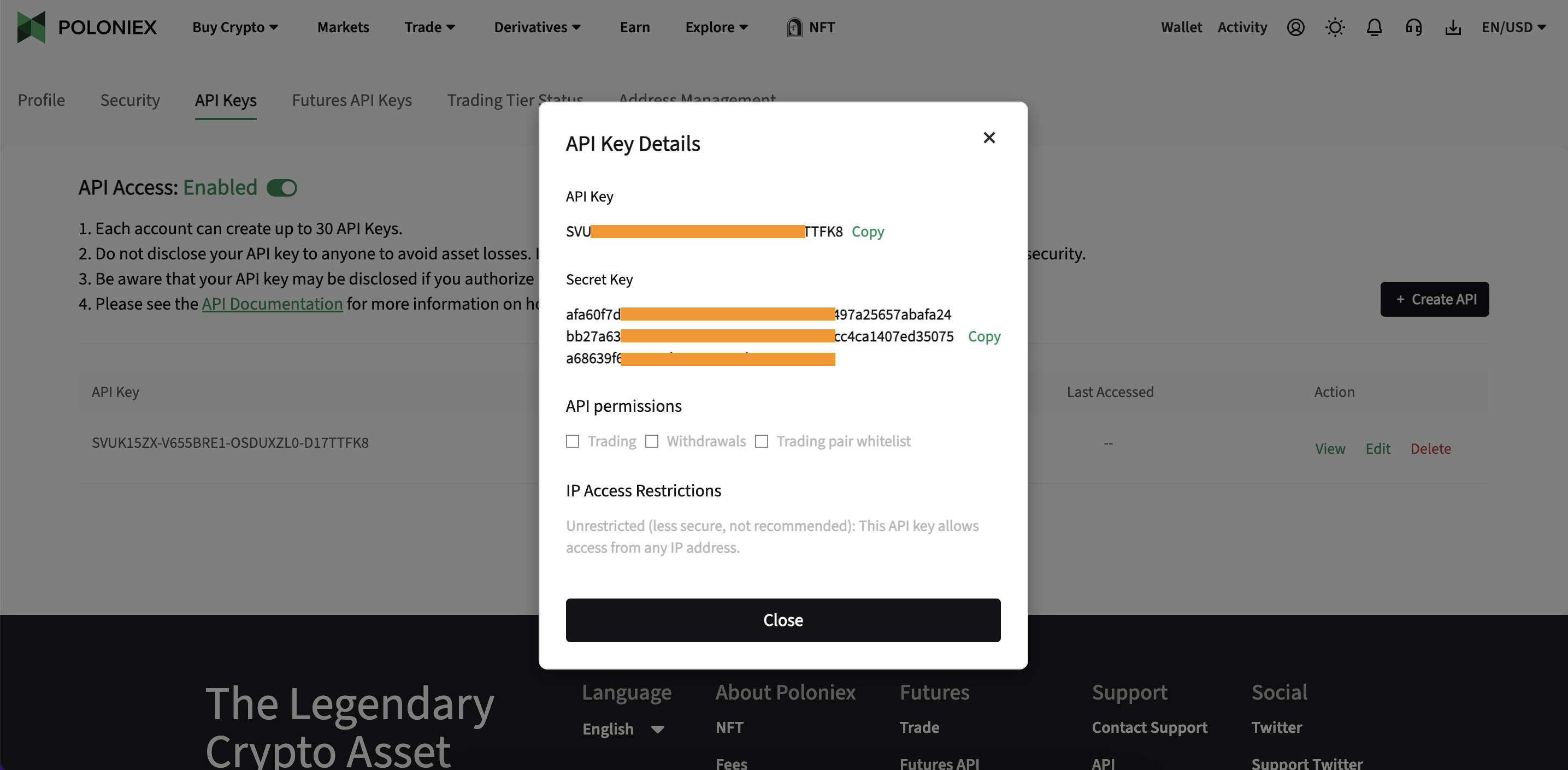
Your API Secret will only be shown once. Copy and store it securely.
Required Configuration
Permissions: Keep trading and withdrawal permissions disabled. Only View/Read is needed.
Withdrawals: Disabled by default (do not enable).
IP allowlist: Disabled by default. You may enable it if you use a static IP. Do not use it with a dynamic IP, as this may block access.
Top Tip: Name your key descriptively (e.g.,
Cryptio_ReadOnly_2025-09).
Step 2: Import Your API Key Into Cryptio
Log in to your Cryptio workspace.
Go to the Imports tab.
Select Exchanges, then click the Poloniex block.
Paste your API Key and API Secret into the required fields.
Choose an Import date range. You can import your full transaction history.
Click Create to begin the import.
Step 3: Verify Your Import
In Imports, locate your Poloniex connection.
Click the transaction count to open the Transactions tab.
Confirm that your balances and a sample of transactions match your Poloniex records.
If transactions are missing or incorrect, double-check your API key permissions in Poloniex and try again.
Troubleshooting
Missing transactions: Ensure your API key has the correct View permissions enabled.
Invalid or expired key: Regenerate your API key in Poloniex and re-import it into Cryptio.
IP allowlist errors: Confirm that Cryptio’s IP(s) are correctly added if you enabled IP restrictions.
API Secret lost: You must generate a new API key pair.
For more API info, please see Poloniex API documentation