
How to connect Crypto.com to Cryptio
You can connect your Crypto.com Exchange account to Cryptio using an API key. Once connected, your balances and transactions will sync automatically.
Step 1: Generate Your API Key in Crypto.com
Log in to your Crypto.com account.
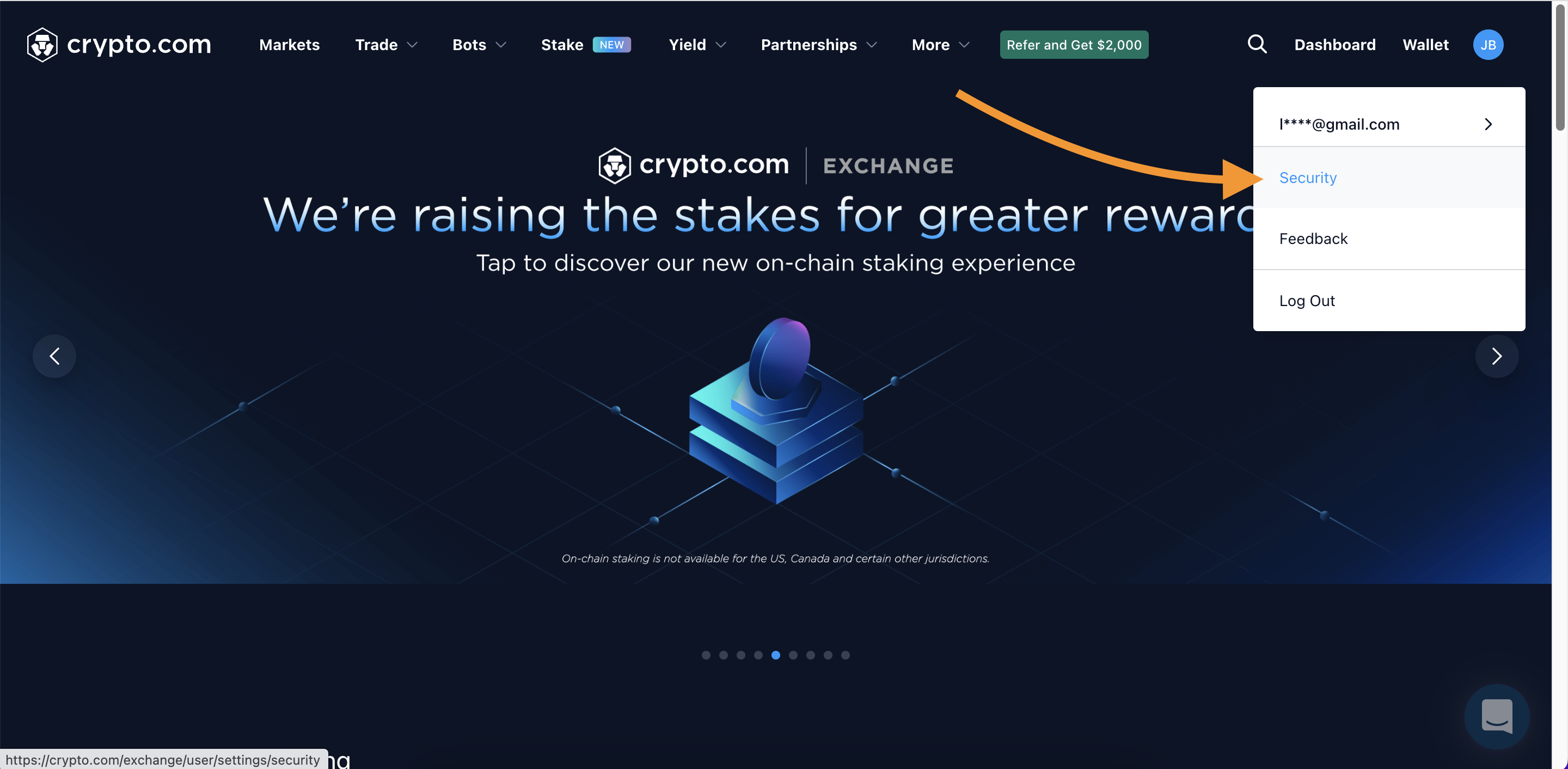
Go to your profile: Click your profile icon in the top-right corner.
Select Security.
Navigate to API Keys.
Click Create a new API key. Enter a label and your 2FA code.
Save your Public and Secret keys.
By default, new API keys are set to Can Read permissions only.
Store your keys securely.
Use a clear label such as
Cryptio_ReadOnly_2025-01.
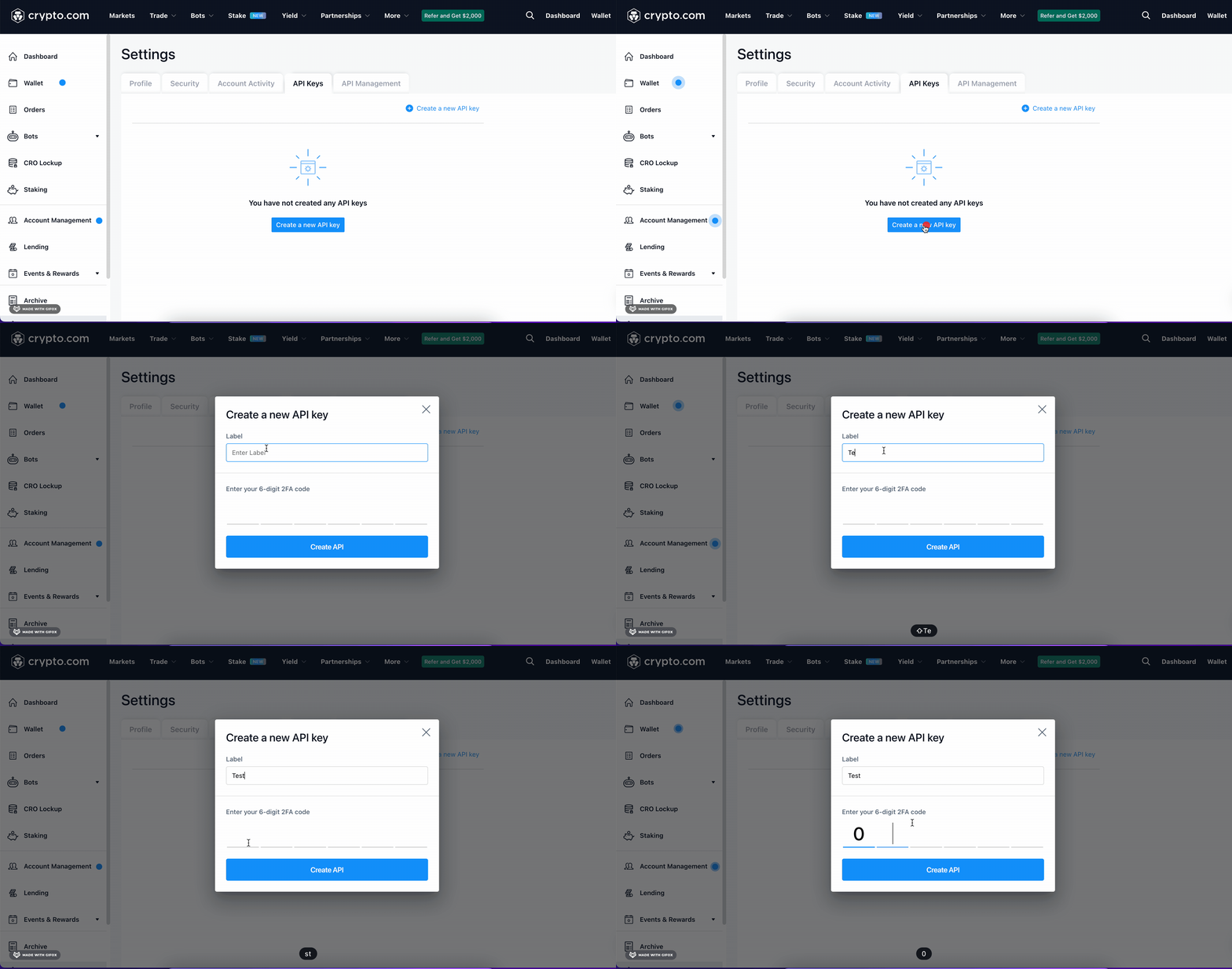
Only Read access is required.
Note: You can enable IP restrictions for additional security. If your keys are ever compromised, delete them immediately and generate new ones.
Step 2: Import Your API Key into Cryptio
Log in to your Cryptio workspace.
Go to the Imports tab.
Select Exchanges.
Click the Crypto.com block.
Paste your API key and secret into the required fields.
Choose an import Date range (you can import your full history).
Click Create to start the import.
Step 3: Verify Your Import
In Imports, locate the Crypto.com line.
Check the transaction count. Click it to open the Transactions tab.
Review your balances and a sample of transactions to ensure the data looks correct.
Troubleshooting
Missing transactions: Confirm that your API key has Can Read permissions.
Invalid or expired key: Regenerate the API key in Crypto.com and update it in Cryptio.
IP restrictions: If you enabled IP allowlisting, make sure Cryptio’s IPs are added in Crypto.com.
Sync delays: Crypto.com may enforce rate limits. Data may take a few minutes to appear.
FAQs
Q: Does Cryptio support Crypto.com wallet (App)?
A: No, only Crypto.com Exchange is supported via API.
Q: Can I use sandbox/test keys?
A: Not at this time.
Q: How often does data refresh?
A: Imports sync automatically on a regular schedule. You can also trigger a manual refresh in the Imports tab.
For more API info, please see Crypto.com API documentation