
How to connect Gate.io to Cryptio
You can connect your Gate.io account to Cryptio to automatically import your balances and full transaction history. Once connected, your data will sync regularly in the background.
Step 1: Generate Your API Key in Gate.io
Log in to your Gate.io account.
Click your avatar in the top-right corner.
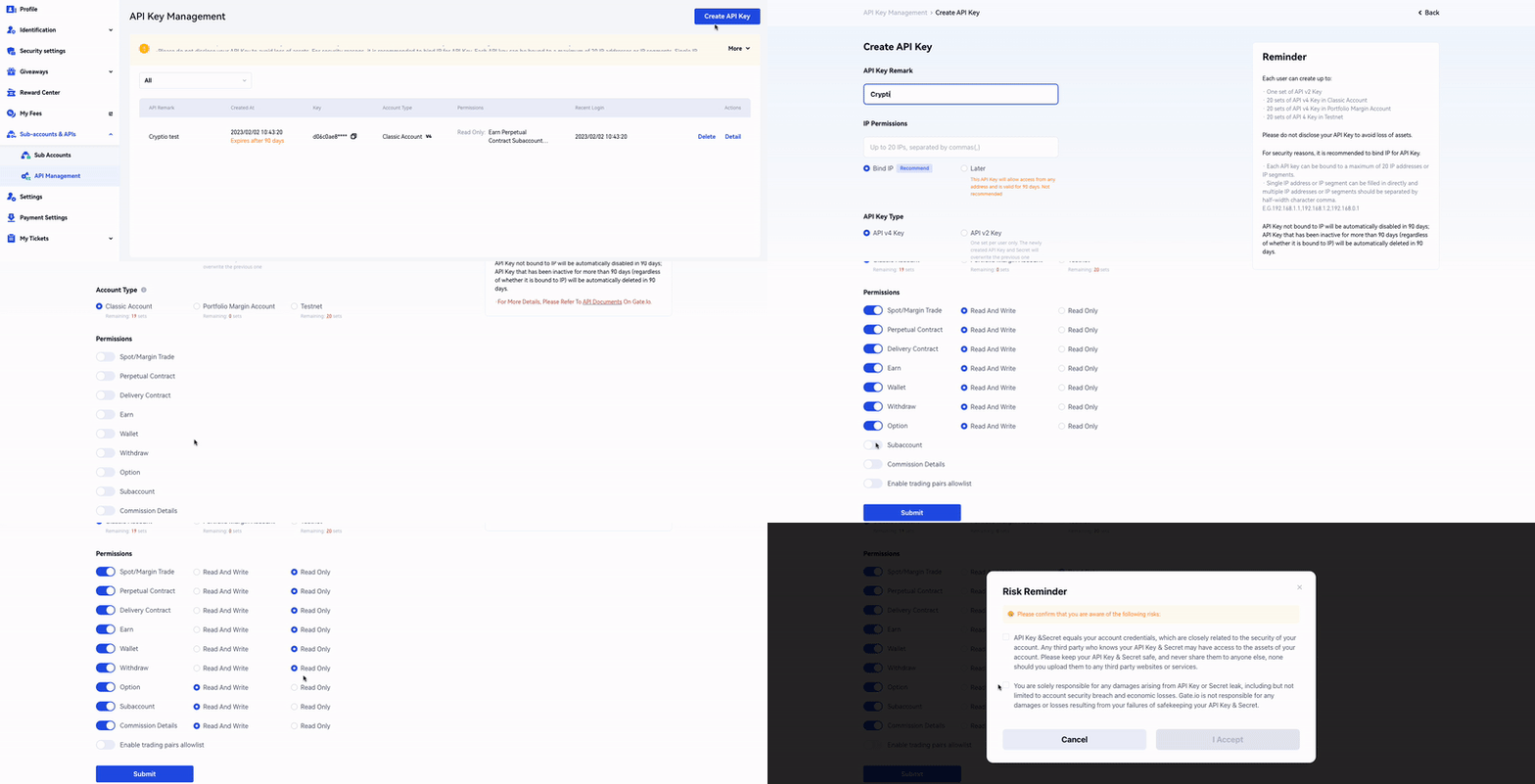
Select API Management from the dropdown menu.
Click Create API Key (on the right-hand side, or in the middle if this is your first time).
Remark: Add a descriptive label, e.g.,
Cryptio_ReadOnly_2025-09.IP Permissions: Select Later.
API Key Type: Leave as the default (API v4 Key).
Account Type: Leave as the default (Classic Account).
Permissions: Select Read-only for all permissions. Do not enable trading, withdrawals, or “Enable trading pairs allowlist.”
Click Submit.
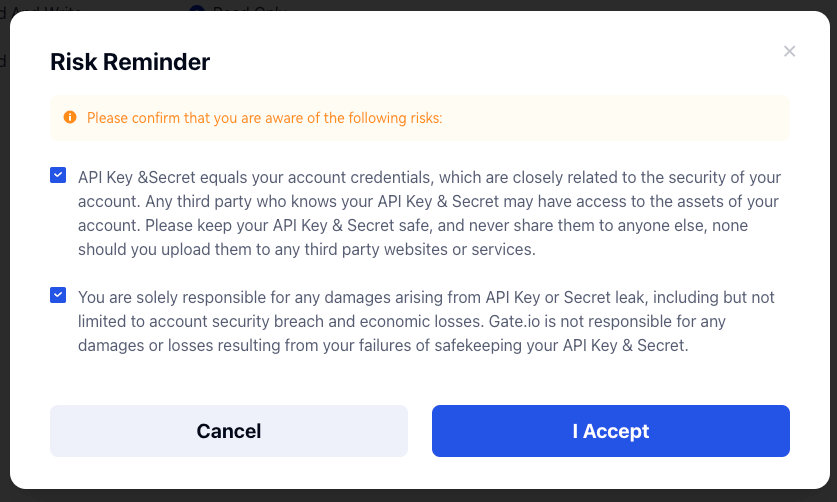
Review the pop-up agreement carefully, then check both boxes to agree.
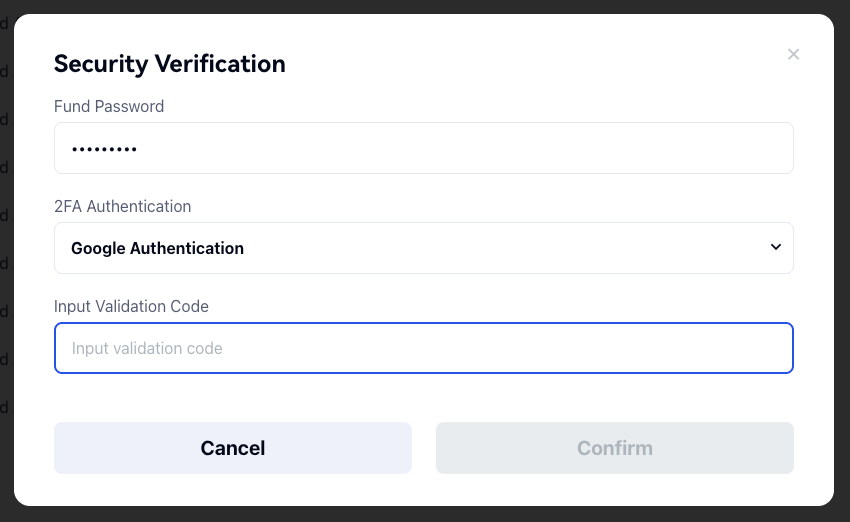
Enter your fund password and Google Authenticator code.
Click Confirm. Your API Key and API Secret will now be displayed. Copy them securely — you will need them for Cryptio.
Only Read access is required.
Step 2: Import Your API Key into Cryptio
Log in to your Cryptio workspace.
Go to the Imports tab.
Select the Exchanges tab and click the Gate.io block.
Enter a name for your import (e.g., “Gate.io Main”).
Paste your API Key and API Secret.
Choose the date range for your import. To bring in your full transaction history, select All history.
Click Create. Your data will begin importing automatically.
Step 3: Verify Your Import
In Imports, find the Gate.io integration.
Click the transaction count to open the Transactions tab.
Alternatively, click the Gate.io import line → in the Source Edition pop-up, go to Source summary → select Transactions.
Review balances and a sample of transactions to confirm the import looks correct.
Troubleshooting
Missing transactions: Ensure all required Read-only permissions are enabled on your Gate.io API key.
Key invalid or expired: Regenerate a new API key in Gate.io and update it in Cryptio.