
Loan Management: Creating Loan Terms & Using the Loan List
Key terms
Loan List: your command center to view, search, and bulk‑manage loans.
Loan Terms: reusable templates (term sheets) that define the economics and schedule rules used when creating one or many loans.
Use Loan Terms to standardize setup; then instantiate a loan from a term to generate schedules, interest accruals, and fees consistently.
Who can do this
Permissions: You’ll need access to Loans and Loan Terms (create/edit). If your role can’t see the New Loan or New Loan Term buttons, contact your Cryptio Account Manager or support team.
What you need before you start
Editor access to LMS
Source of truth for loan metadata & schedules (term sheets or LOS/OMS export)
Pre-set labels releavant to the loans
Set recognizable counterparties and wallets
Loan List — Navigation & manage loans
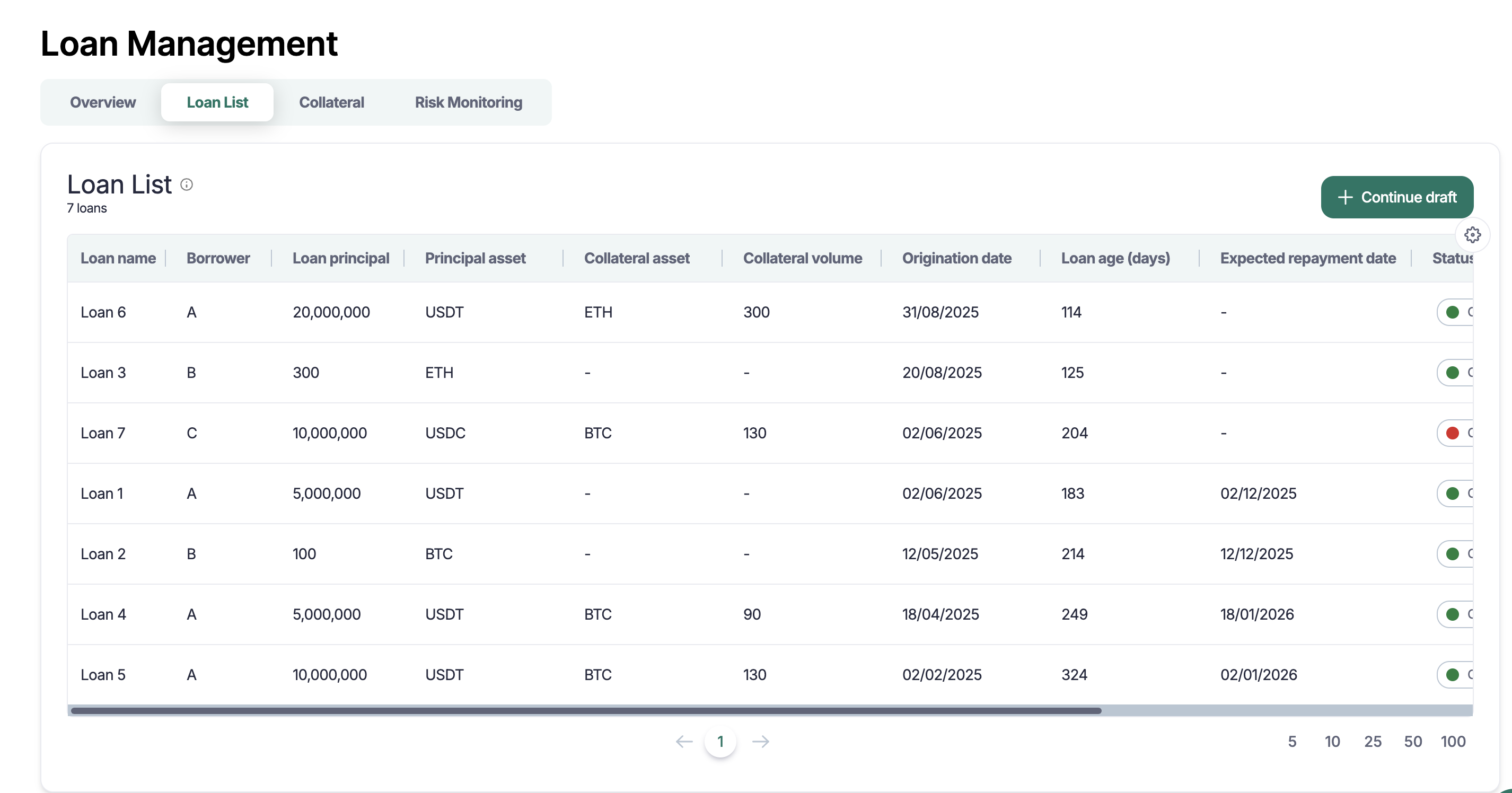
The Loan List is your central hub for managing your loan portfolio. You can view key loan information - name, borrower, principal amount, principal asset, origination date, loan age, expected repayment date, and status.
Statuses: Open, Closed, Liquidated, Repaid
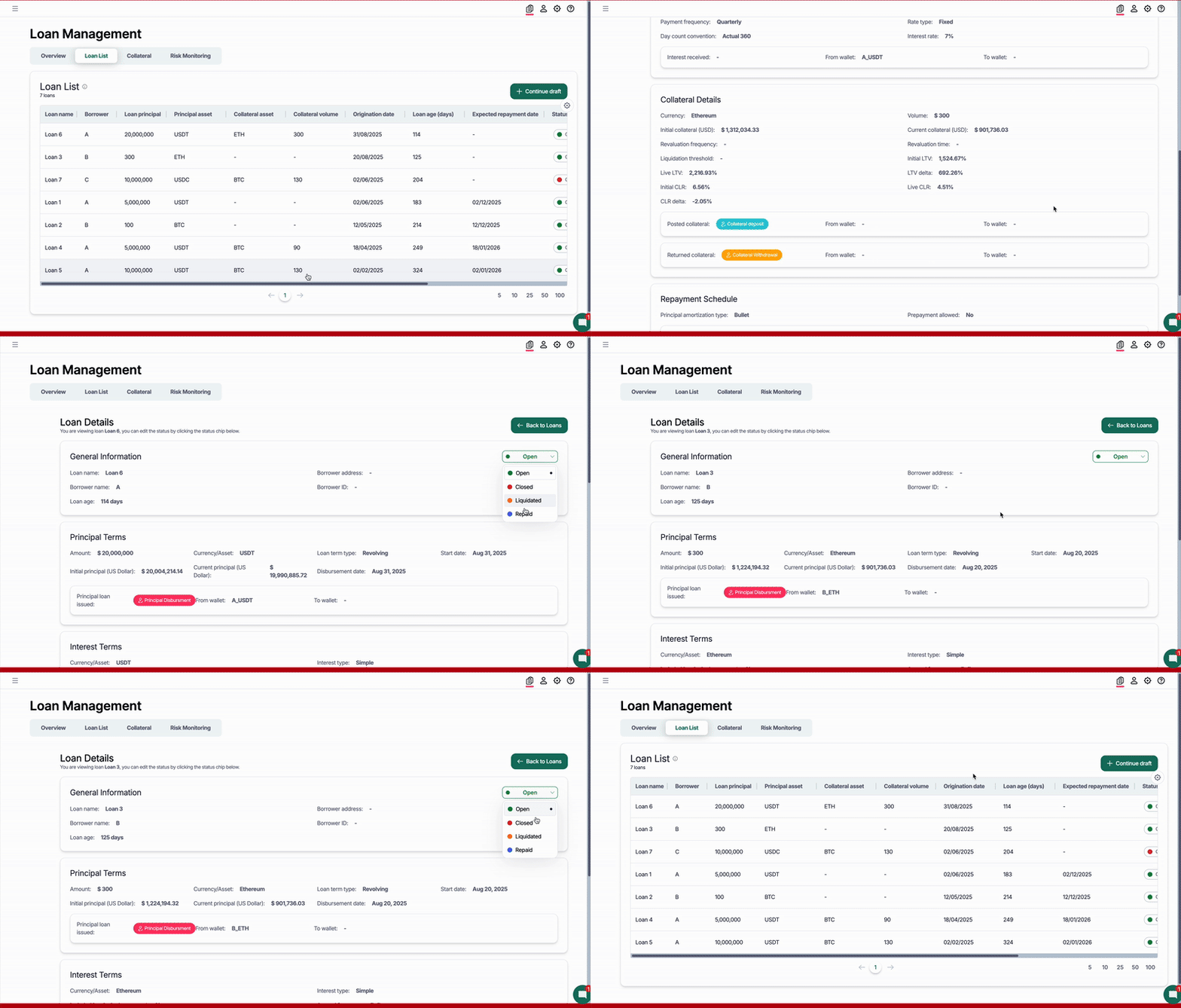
Click on a loan to see the schedule, transactions and collateral links.
You can also drill down into transaction activities for detailed finance and accounting insights. The same Accounting product features are available here—apply labels or export selected loans for reporting.
💡Tips - Columns: Click Customize columns (setting icon on the top right corner of the table) to show/hide, auto scale, and reset column sizes and visibility
Choose how to add loans
Manual entry (a few loans)
CSV import (bulk onboarding) with the help of Cryptio’s team. Bulk import via Data Bridge coming soon.
Inline edits: Update owner, tags, or notes without leaving the list (if enabled).
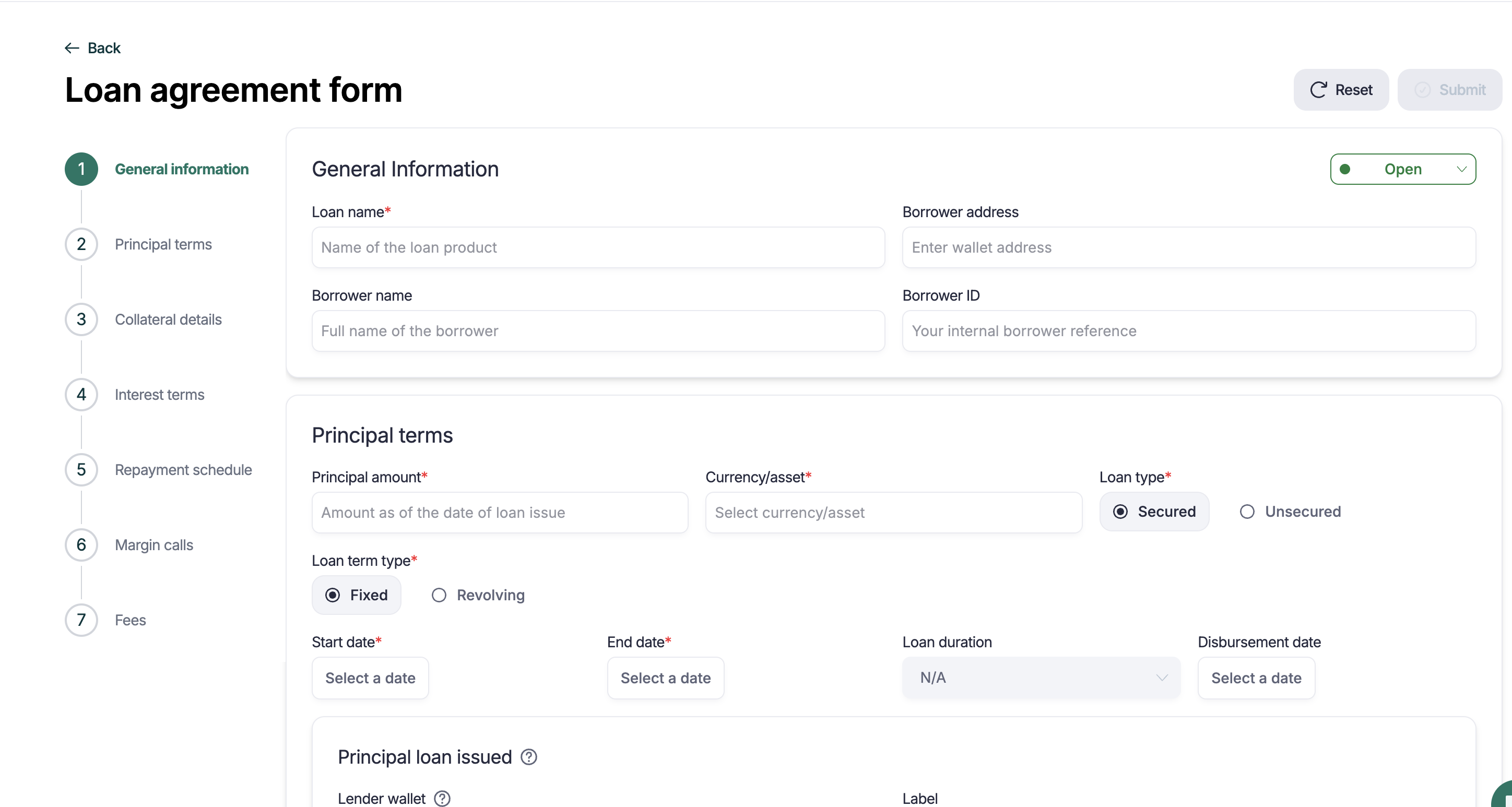
Create a Loan Term
A Loan Term defines how interest, fees, and schedules are calculated.
A. Start a new term
Select +Add Loan Terms button
Give the term a clear name (e.g., Term Loan A — 12M SOFR + 250 bps).
Currency: e.g., USD, USDC, EUR.
Fill out relevant information following the information requested in the form.
There are 7 sections to the form:
General information
Principal terms
Collateral details
Interest terms
Repayment schedule
Margin calls
Fees
Here is a spreadsheet format for you to consider with additional information: https://docs.google.com/spreadsheets/d/1ptxh7R7Mhs8W89lzdj4uzrPJdhSOY8nS5qP_EB7mUrs/edit?usp=sharing
Notes:
Data points marked with * are compulsory fields
There are ‘?’ across the page to provide more information for the users.
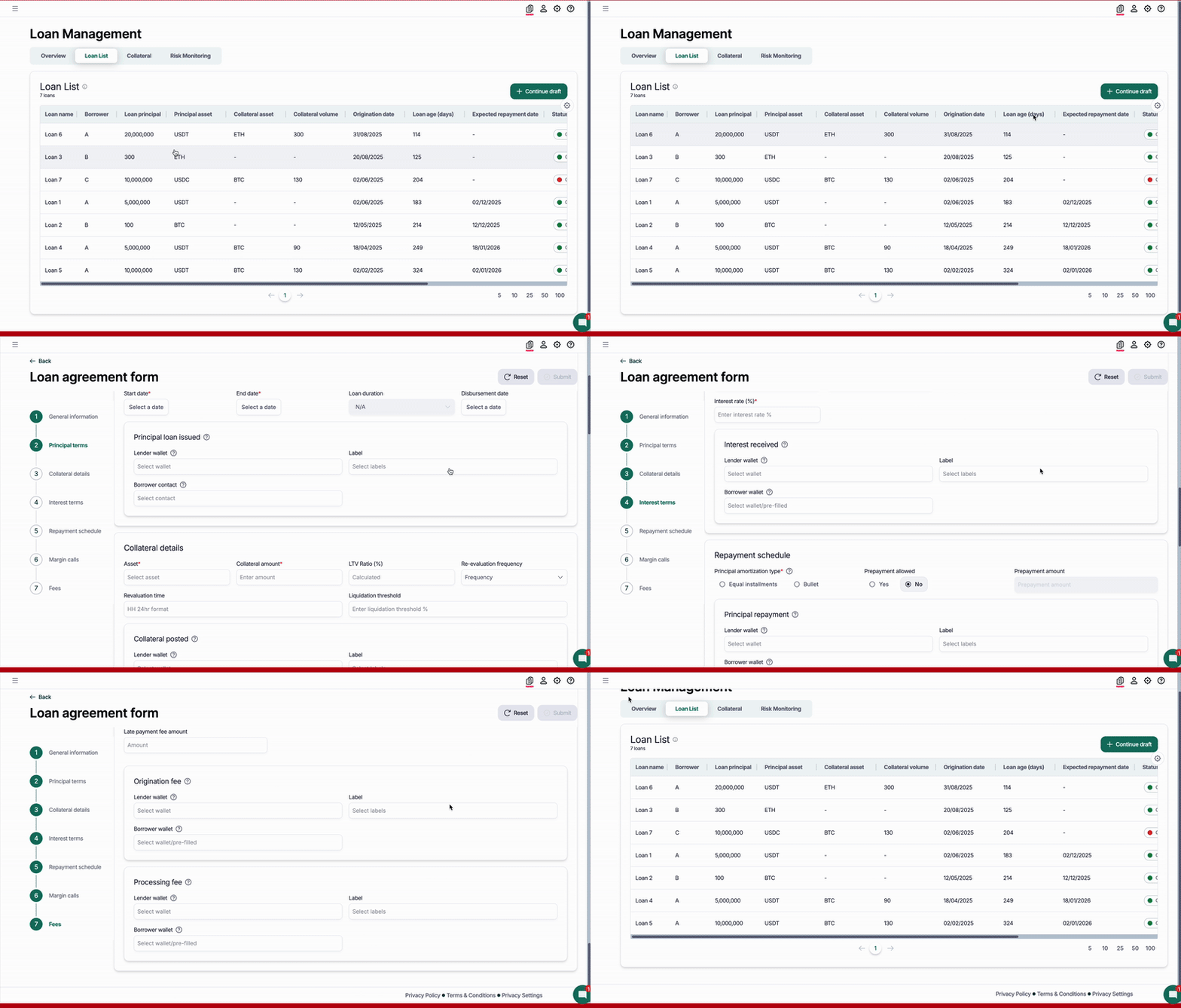
B. Fill the core fields
Interest: Fixed or Floating
Fixed: set Rate %
Floating: set rates
Day count: 30/360, ACT/360, or ACT/365
Amortization type: equal principal (straight‑line), or bullet
Payment frequency: Daily, Weekly, Monthly, Quarterly, End‑of‑term
Drawdown: Fixed or revolving
Prepayment: Allowed? penalties? notice period
Fees: Upfront/origination, commitment/utilization, late fees (basis = fixed or %)
Collateralization: See collateral section in the loan form in the app.
C. Advanced (optional)
Map GL accounts for principal, interest income, fees, and receivables. Sections showing a box within a box relate to mapping loan activities to actual transactions and wallet addresses or sources. Accounts mapped via the standard label mapping process
💡Quality checks before submitting the loan term:
Day count, compounding, and frequency match the contract
First payment date & amounts match the term sheet
Collateral set up for secured loans (LTV caps/haircuts, wallets)
Schedules generate without validation errors </aside>
D. Save & validate
Saved as Draft by default.
Submit to publish for team use.
Tip: Keep terms generic so you can reuse them. Create a new version only when rate math or repayment logic truly differs.
Once a term exists, you can monitor the collateral, risk, fees, and interest related to reconciliation and accounting activities. Learn more in the 'Collateral' and 'Risk monitoring' dashboard articles.
Troubleshooting tips and tricks
Schedule looks off → Check day count, payment frequency, or interest‑only period in the term.
Fees missing from the schedule → Ensure each fee includes a timing (upfront or periodic) and a calculation basis.
Accrual math looks off → Check day count and compounding on the Loan Term
Missing schedules → Make sure the loan has dates
Totals don’t match dashboards → Verify currency settings and reporting tags
LTV not updating (secured loans) → Confirm FMV source and collateral assignment
FAQs
Is a Loan Term and a Loan the same?
Yes, there is a 1:1 mapping between a loan and its loan terms
Can we change the schedule after a loan is created?
Not yet, specific changes will be available very soon.
How should we manage pricing changes?
Re-rates and loan actions will be available in H2 2026