
Portfolio balances (Wallet breakdown)
This report provides a full overview of the historical balances for each asset per wallet. It is especially useful when you want to see how your portfolio or specific wallets have evolved over time.
For example, you can track the performance of a single asset across all your wallets, review the balances within one particular wallet, or analyze overall portfolio growth. The report can also help with month-end reconciliations, performance reviews, and compliance reporting by showing changes in value over a chosen time period.
How to Create a Portfolio Balances (Wallet Breakdown) Report
Go to the Report page.
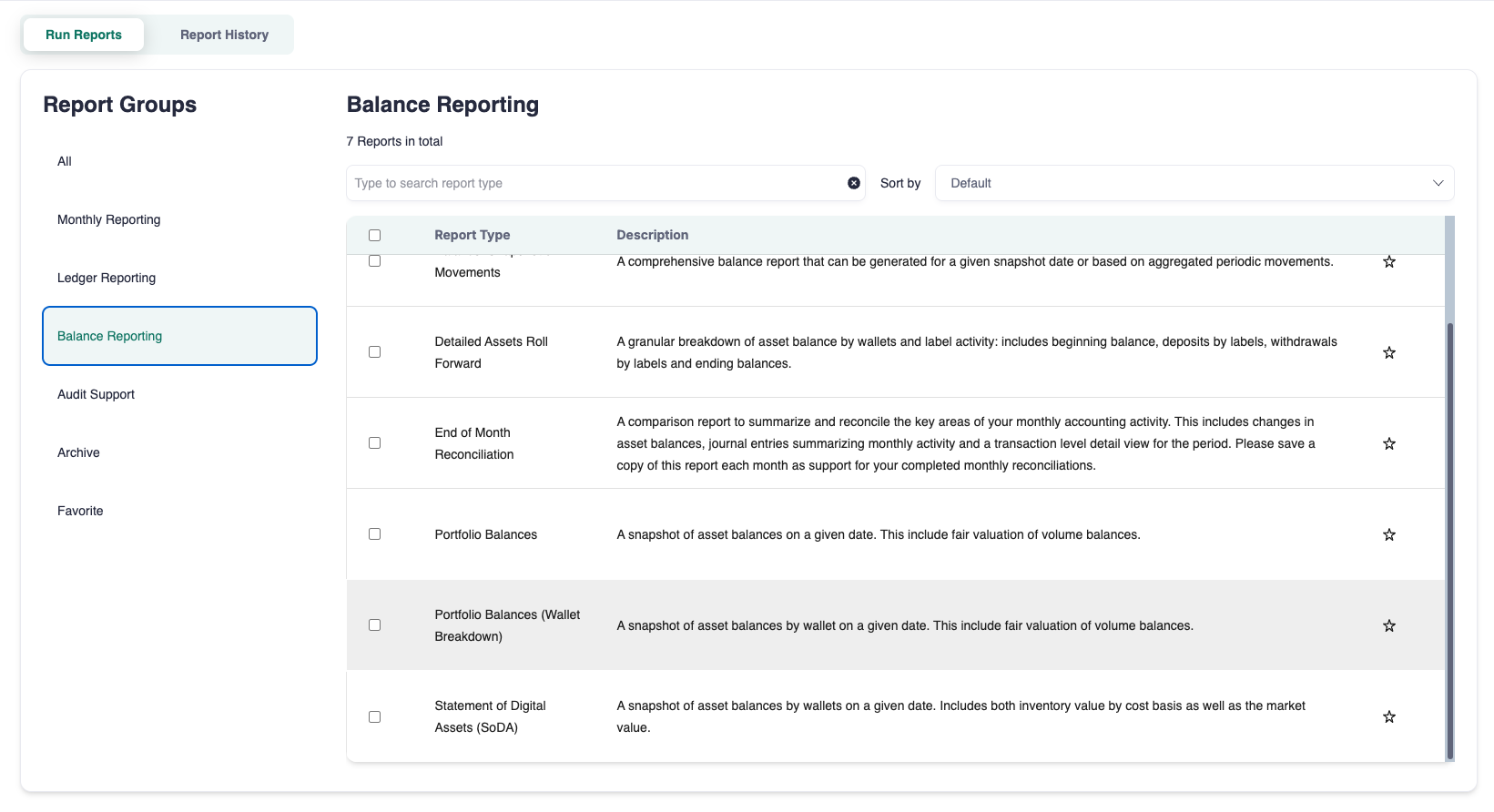
Either type Portfolio Balances and select the Portfolio Balances (Wallet Breakdown) report, or find it under the Balance Reporting section.
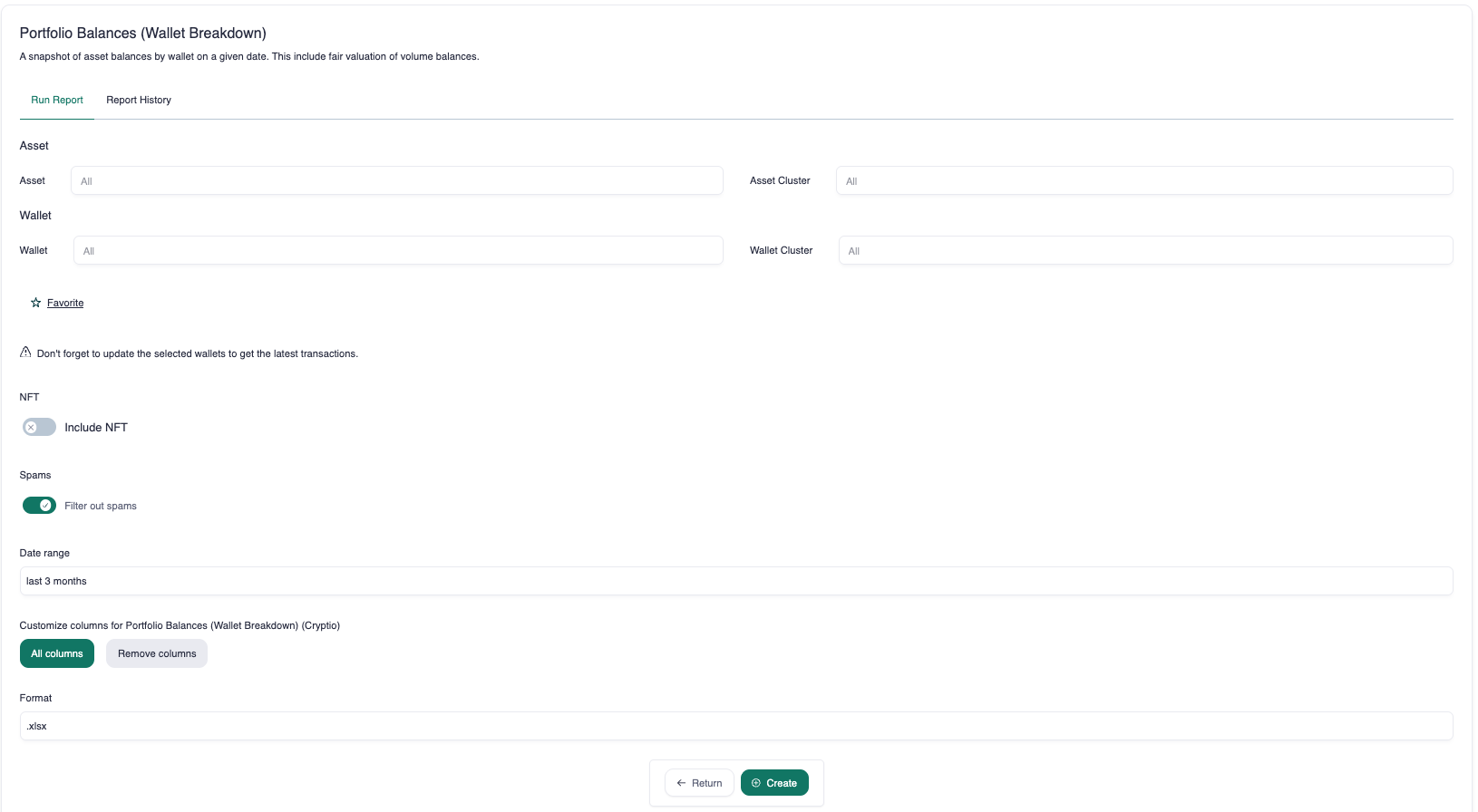
(Optional) Select an Asset.
(Optional) Select a Wallet. You can:
Choose just an asset or a wallet
Choose both an asset and a wallet
Leave both blank to include everything
Select the Date Range. You can choose different rolling periods (e.g., last 3 months).
Click Create.
Example Use Cases
Use case 1: Evolution of one asset across the portfolio
Asset: chosen asset (e.g., ETH)
Wallet: leave blank
Use case 2: Evolution of one asset within a specific wallet
Asset: chosen asset (e.g., ETH)
Wallet: chosen wallet (e.g., My Business Wallet)
Use case 3: Balances of all assets within a specific wallet
Asset: leave blank
Wallet: chosen wallet (e.g., My Business Wallet)
Use case 4: Month-end balances of all assets in a specific wallet
Asset: leave blank
Wallet: chosen wallet (e.g., My Business Wallet)
Click Global Overview and specify the date range.
Use case 5: Month-end balances of all assets in the entire portfolio
Asset: leave blank
Wallet: leave blank
Click Global Overview and specify the date range.
Column Definitions
Here’s what some of the more complex columns mean:
Inventory: The sum of the particular asset pool’s cost basis at that time.
Market Price: The end-of-day price from the selected price provider (set in workspace settings).
Assets Market Value: The asset’s balance multiplied by the market price.
Unrealized Gains & Losses (USD): The difference between Inventory and Assets Market Value.