
Asset Roll Forward (ARF) report
The Asset Roll Forward report simplifies your month-end reporting by providing detailed insights into asset performance over a given period. It contains key financial data that CFOs and accounting teams can use for revenue reporting, reconciliation, and financial statement preparation.
This report includes:
Opening and closing balances
Whether assets are included in revenue and expense (based on label mapping)
Units and balances for each asset
Ingoing and outgoing internal transfers (per label mapping)
Ingoing and outgoing swaps (per label mapping)
What is an Asset Roll Forward Report?
An Asset Roll Forward report (sometimes called a fixed asset roll forward report in traditional finance) provides all the detailed asset data you need for period closing, financial statements, and tax reporting.
The report shows:
Start and end balances for assets
Valuation movements during the period
Deposits and withdrawals of new assets
Summaries by asset group and legal entity
How to Generate an Asset Roll Forward Report
Update all sources before generating the report to make sure it reflects the most recent transactions. You can do this from the Imports tab by clicking Update all.
Basic Asset Roll Forward
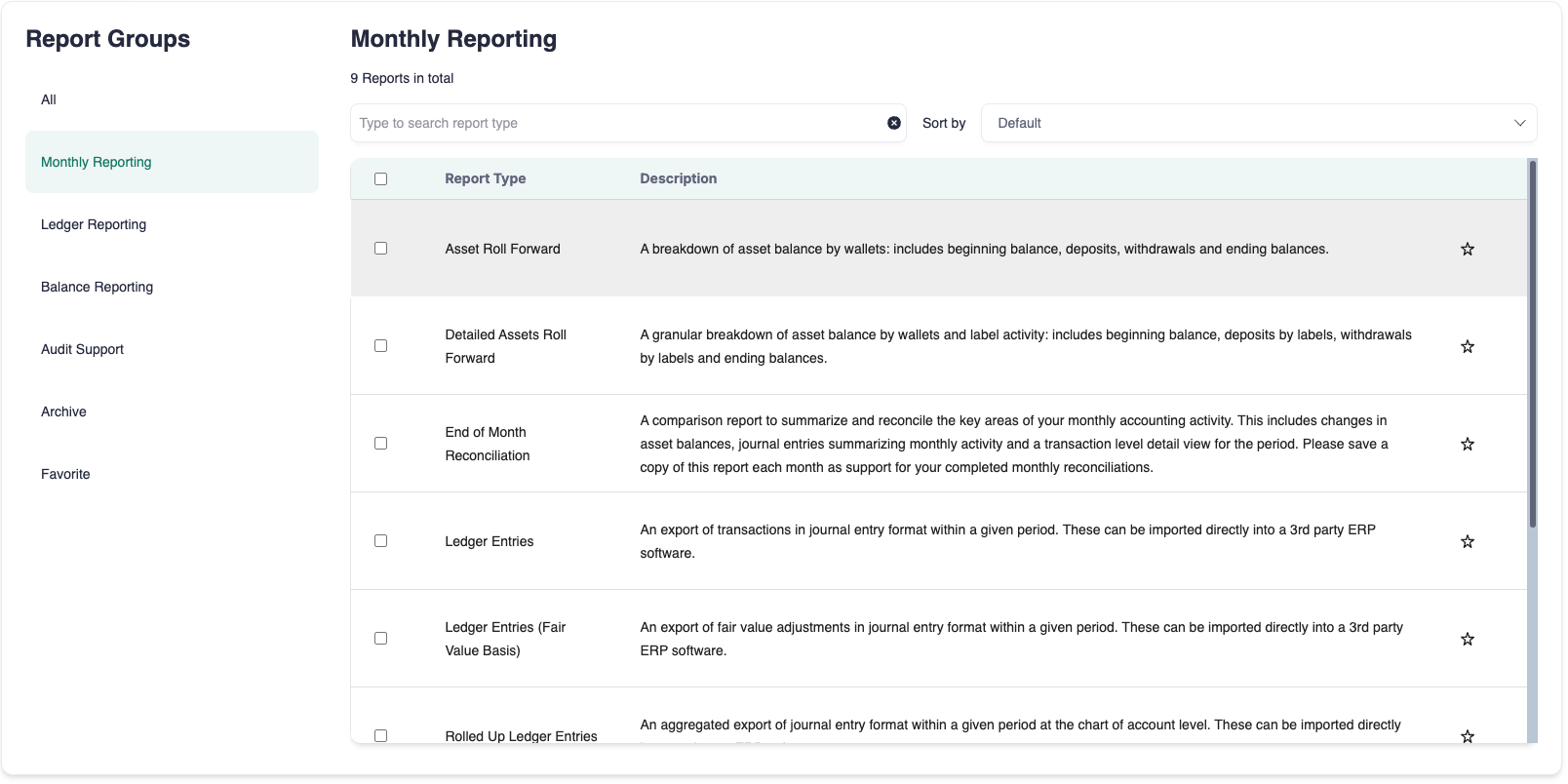
Go to the Reports page.
Type Asset Roll Forward in the search bar or find it under the Balance Reporting or Monthly Reporting sections.
Select Asset Roll Forward.
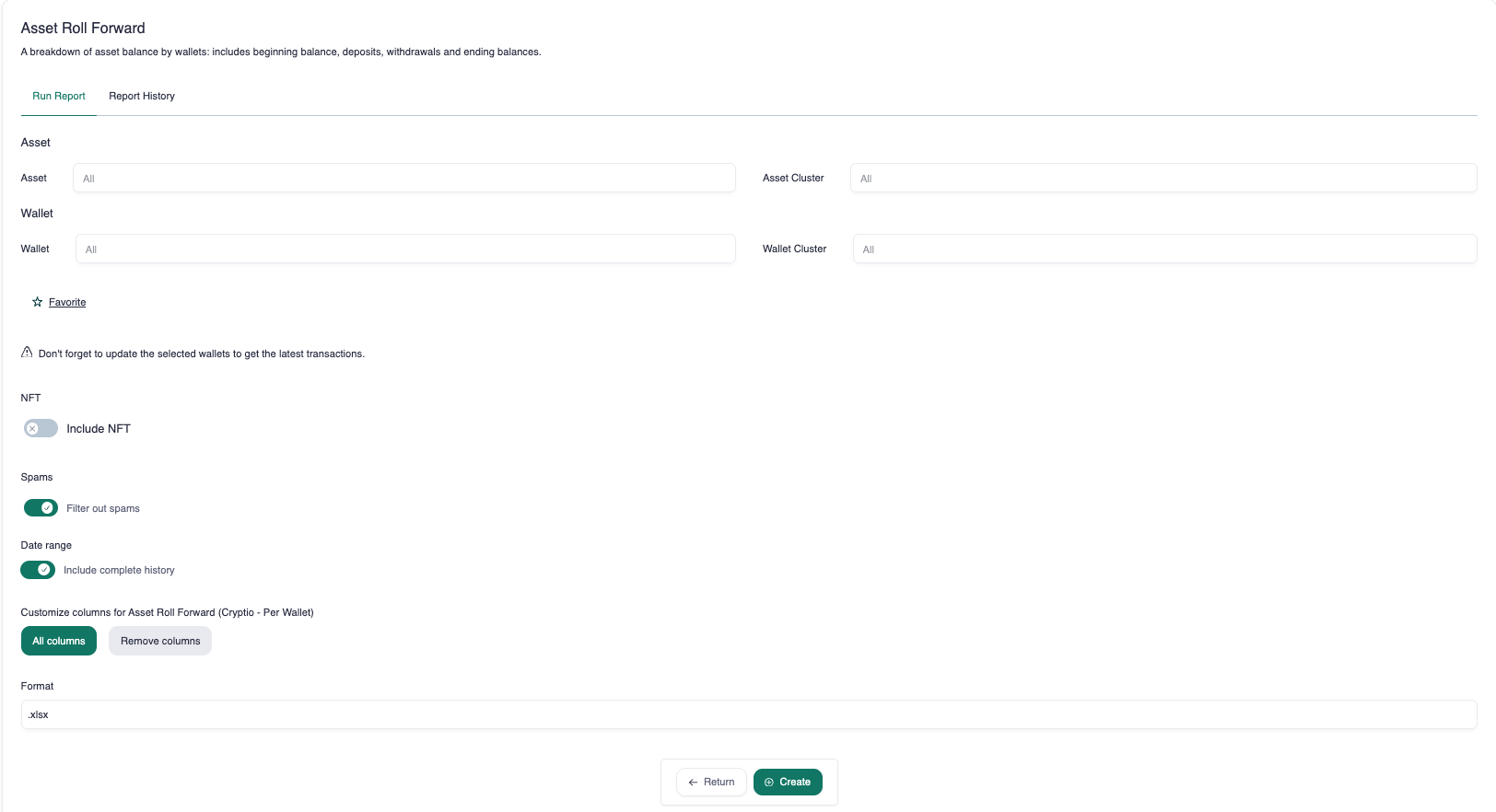
By default, all assets are included. Select a specific asset if needed.
By default, all wallets are included. Select a specific wallet if needed.
Choose a date range or select a complete history.
Click Create.
Once the report appears, click the download icon under the Actions column.
Detailed Asset Roll Forward
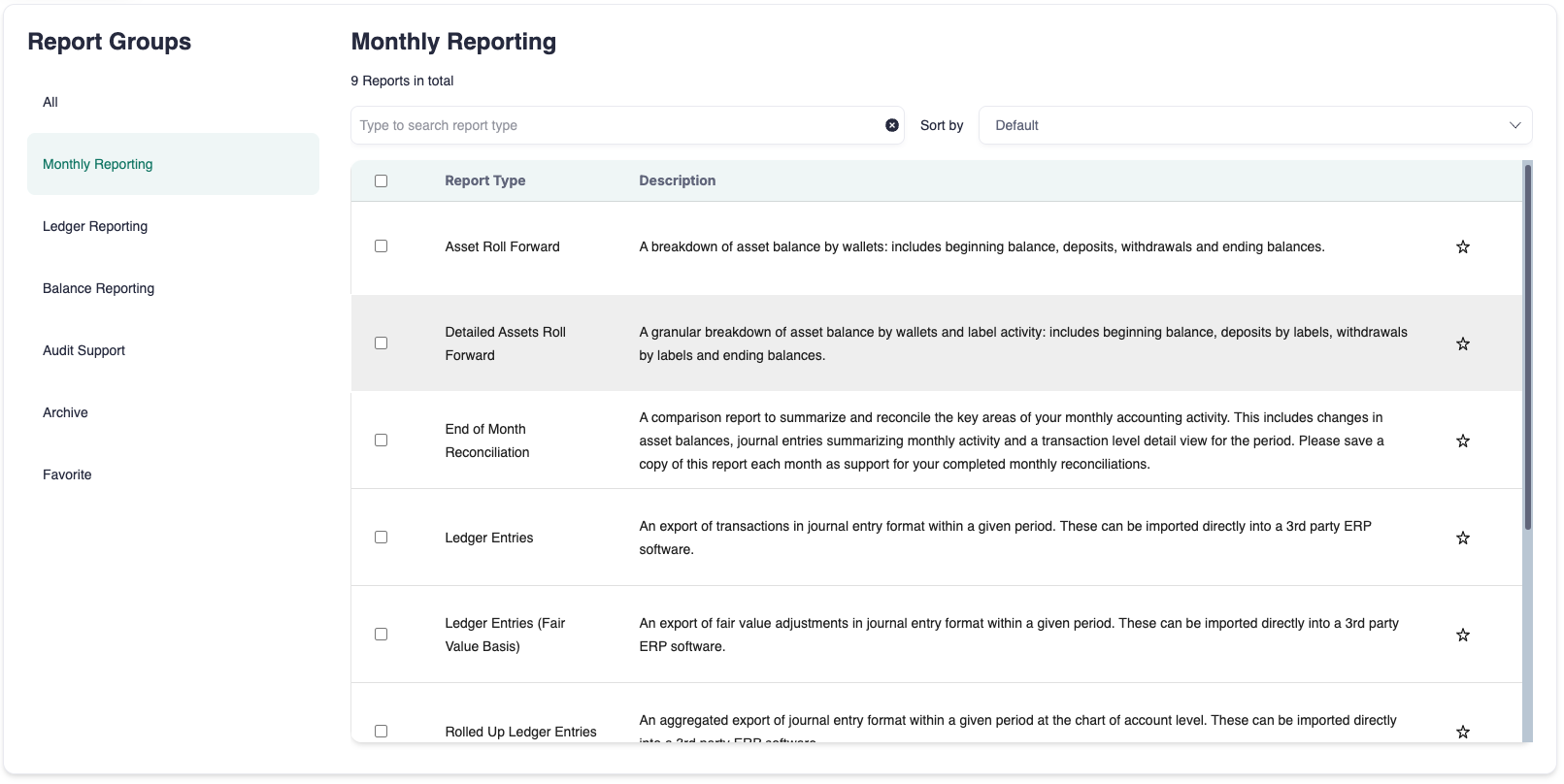
Go to the Reports page.
Type Detailed Asset Roll Forward in the search bar or find it under the Balance Reporting or Monthly Reporting sections.
Select Detailed Asset Roll Forward.
4 - 8. Follow the same steps as for the Basic Asset Roll Forward report.
How to Read the Asset Roll Forward Report
Basic Asset Roll Forward
The report shows the net change in asset balances after deposits, withdrawals, and transfers within the selected period.
Read the report left to right using this calculation logic:
Units: Beginning units + Deposits – Withdrawals = Ending units
Balances: Beginning balance + Deposit balance (+ FMV adjustments, if applicable) – Withdrawal balance (- Impairment, if applicable) = Ending balance
The Basic Asset Roll Forward includes:
Wallet
Asset
Beginning units
Beginning balance
Units deposited
Units withdrawn
Ending units
Ending balance
Detailed Asset Roll Forward
The Detailed version includes all the information in the Basic report, plus a breakdown of deposits and withdrawals by labels. This allows you to reconcile changes and gain deeper insight into activity.
Label examples include:
Internal transfer (in/out)
Swap Revenue (in only)
Staking Revenue (in only)
Swap (in/out)
Fee (out only)
Expense (out only)
Use the detailed report to track performance across revenue streams and expenses over time.