
Ledger entries report (Standard and Rolled up)
The Ledger Entries report is a universal way to share accounting data between Cryptio and your accounting software. It provides a detailed record of your crypto transactions, showing how they are mapped to your accounts in a double-entry format (with balanced debits and credits).
This report is especially useful if your accounting software does not integrate directly with Cryptio. It can also be downloaded before synchronizing transactions, as the Error column highlights any issues (such as missing prices or incomplete account mappings) that would otherwise prevent syncing.
You can generate two types of Ledger Entries reports:
Standard Ledger Entries report: a line-by-line report of every transaction.
Rolled Up Ledger Entries report: groups multiple transactions into batch entries, with additional options for handling unsynchronizable transactions.
Both report types follow the same structure, and you can choose the version that best suits your accounting needs.
What is a ledger entry?
A ledger entry is a record of a business transaction. In Cryptio, these are generated using the double-entry format, where the debit and credit sides always balance.
Before generating your Ledger Entries report
Make sure you’ve completed the following steps:.
Import your Chart of Accounts into Cryptio.
Map your transactions to the correct accounts in your Chart of Accounts.
Use the Needs Review module to confirm:
All transactions have labels.
No assets are missing prices or volumes.
All accounts are mapped to a complete Chart of Accounts.
You can also use the Trial Balances module to monitor whether all of your transactions are mapped, and see the impact per account.
Once this is complete, you can generate either a Standard Ledger Entries report or a Rolled Up Ledger Entries report.
How to generate a Standard Ledger Entries report
Follow these steps:
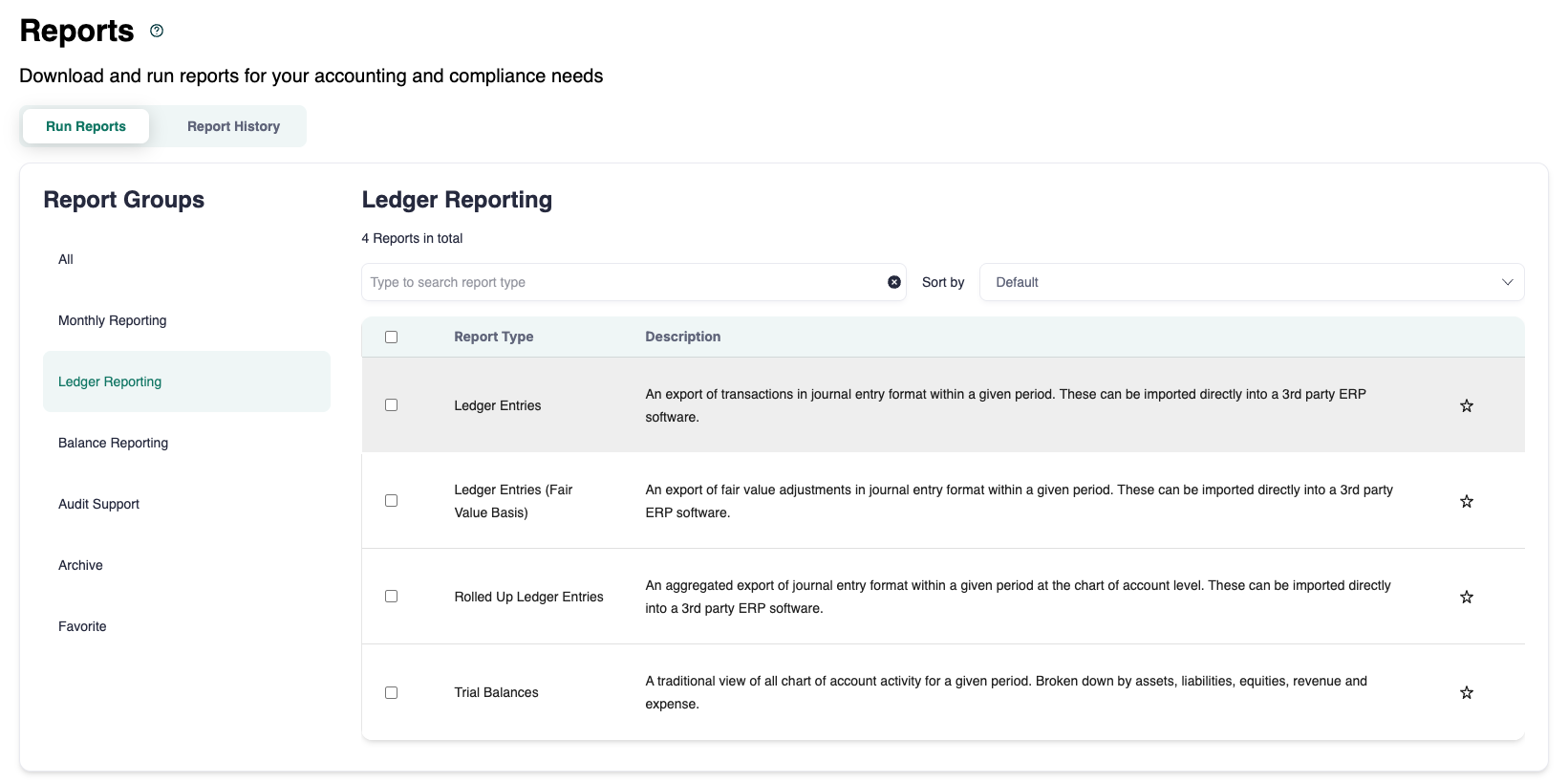
Go to the Reports page.
Type Ledger Entries in the search bar or find it under the Ledger Reporting section.
Select Ledger Entries.
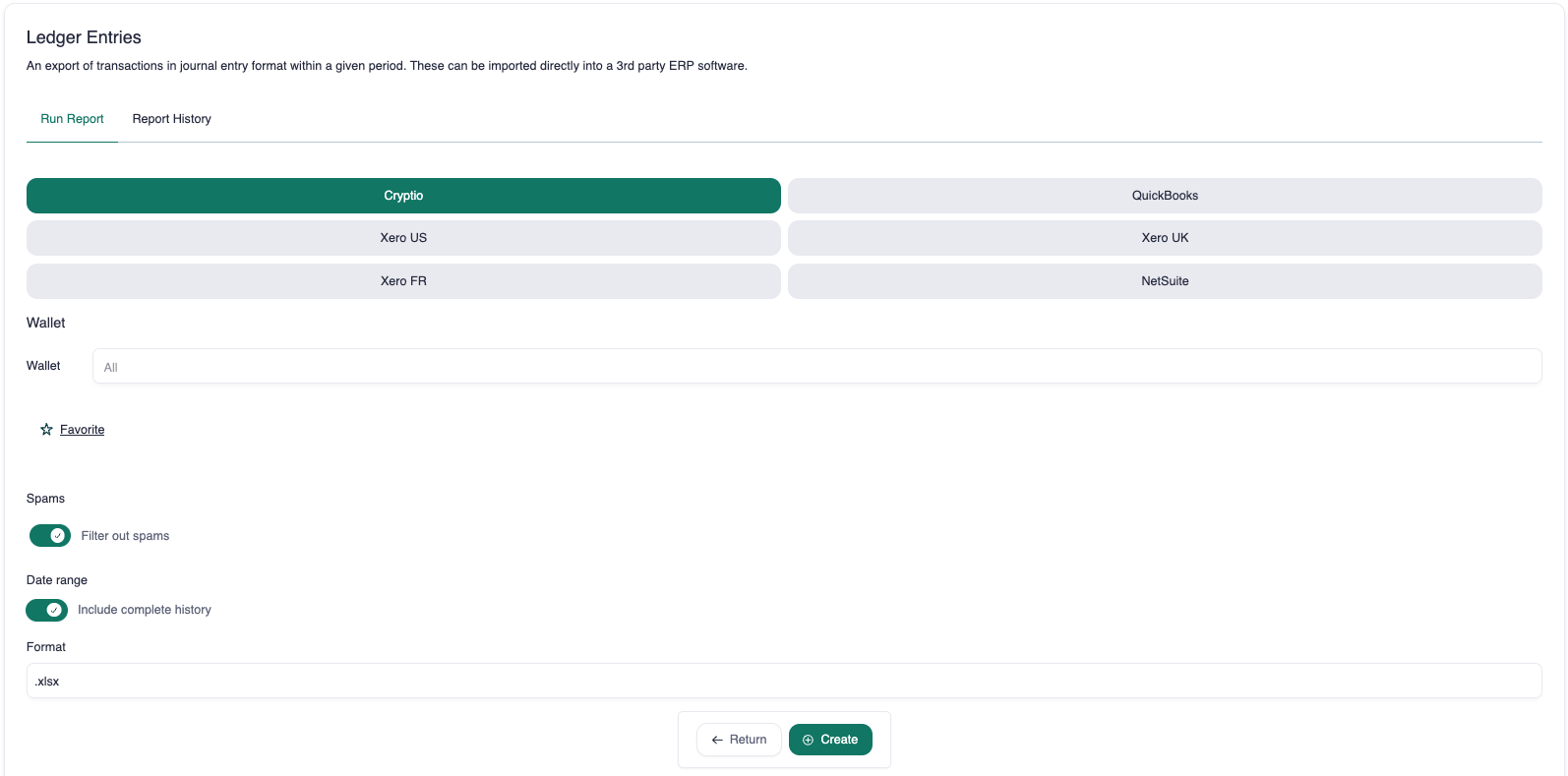
Choose your preferred format:
Cryptio format (recommended if your accounting system doesn’t have direct integration, as you can extract the needed data).
QuickBooks, Xero (region-specific), or NetSuite formats for direct upload.
Select the date range or include a complete history.
Click Create.
Once the report is generated, it will appear on the page. Click the download icon under the Action column to export it.
How to generate a Rolled Up Ledger Entries report
Rolled Up Ledger Entries are designed for high-volume activity, where listing every single transaction individually would create unnecessary complexity. Instead, transactions are batched together into summarized ledger entries.
To generate this report:
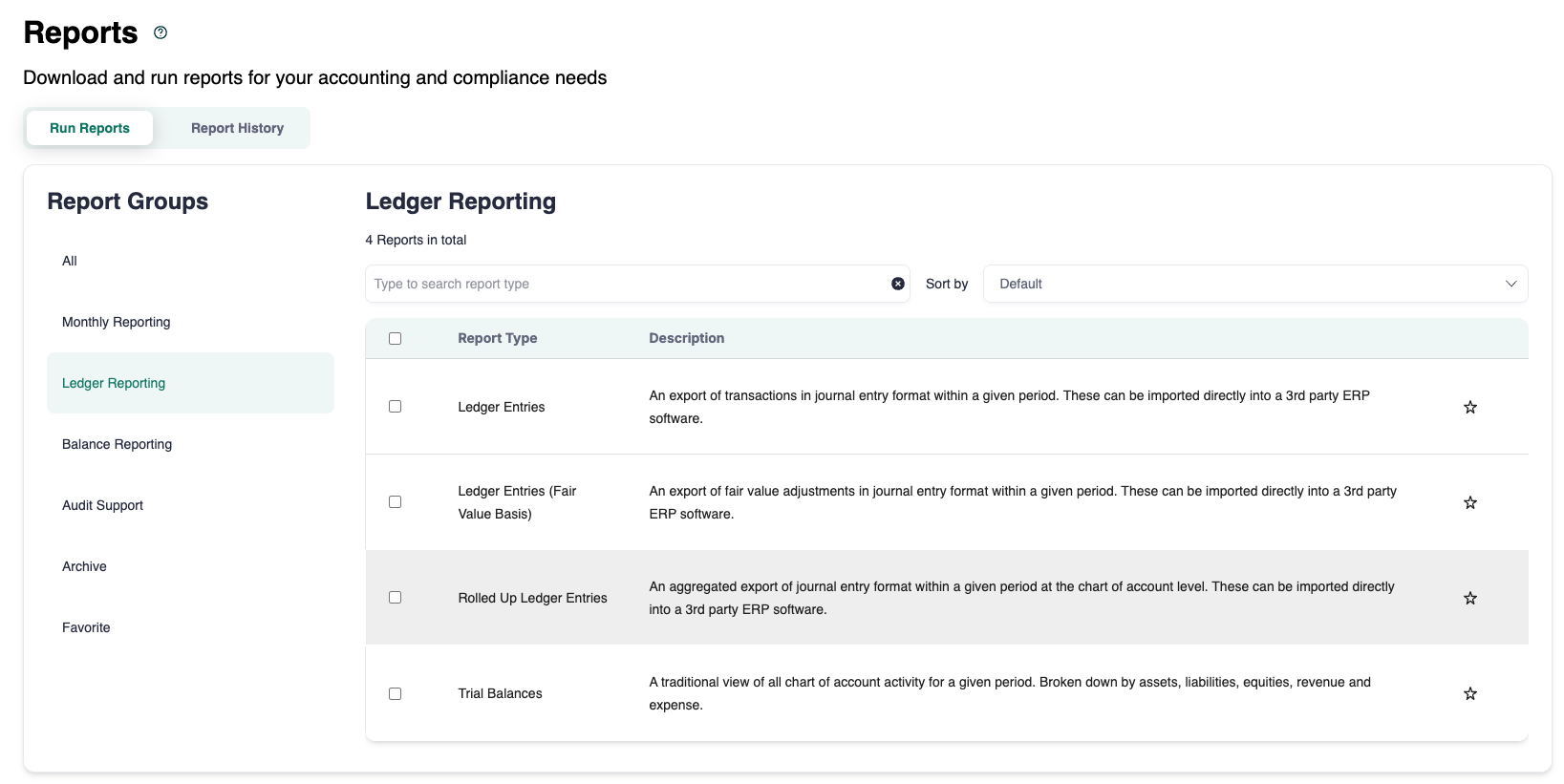
Go to the Reports page.
Type Rolled Up Ledger Entries in the search bar or find it under the Ledger Reporting section.
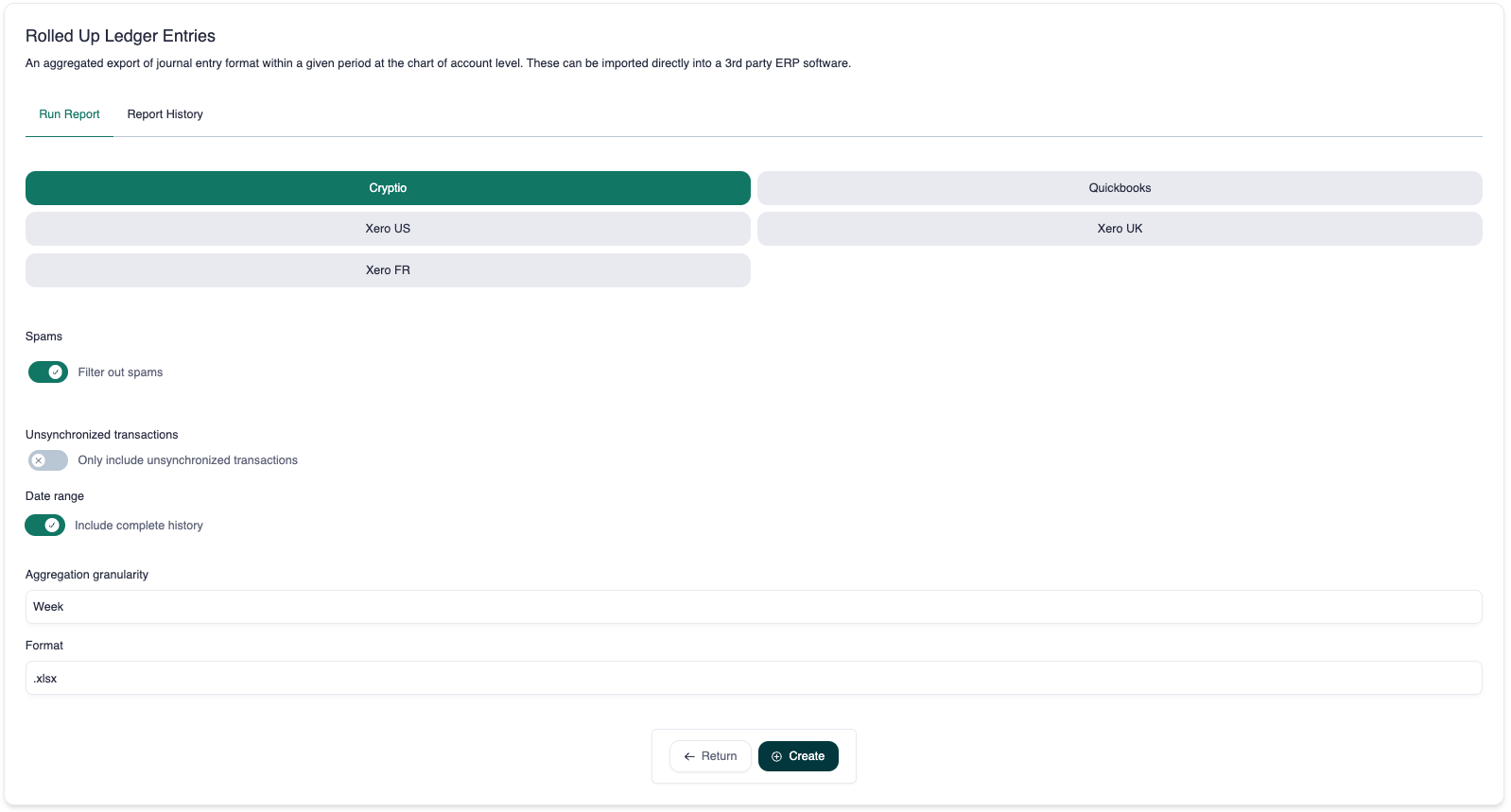
Select your preferred format:
Cryptio format (for extraction and manual adjustments).
QuickBooks, Xero, or NetSuite formats for direct upload.
Decide whether to use the Unsynchronizable transactions only filter:
This option generates a report only for transactions that cannot be synced automatically.
It is especially useful when you need to manually add these into your ERP. You can upload this report directly into QuickBooks, Xero, or NetSuite to record them.
Common examples include many small “fee-only” or micro-transactions (often less than $0.01). Individually, these are not material and therefore are not synced. However, over time these can accumulate into material amounts, which may have tax implications.
Using this option, you can easily sum up and sync these transactions in one go.
If left unticked, the rolled up report will include all transactions (synchronizable and unsynchronizable).
Choose your date range or include a complete history.
Select your granularity:
Day: rolls up transactions into one entry per day.
Week: rolls up transactions into one entry per week.
Month: rolls up transactions into one entry per month.
This lets you control the level of detail in your accounting records.
Click Create.
Once the report is generated, it will appear on the page. Click the download icon under the Action column to export it.
How to read the Ledger Entries report
Both Standard and Rolled Up Ledger Entries reports include:
ID: Transaction identifier (hash or trade ID).
Labels: Labels attached to the transaction.
Date: Transaction date.
Account number: The number the transaction is mapped to.
Account name.
Debit amount.
Credit amount.
Additional transaction details (see example below).
Understanding the Error column
The Error column is a key control field. If you don’t see transaction information in your table, this column explains why the transaction wasn’t imported.
Common messages include:
Invalid journal: Incorrect labeling of a taxable event.
Solution: Update labeling to taxable or non-taxable accordingly.
Missing credited account: Incomplete Chart of Accounts mapping for the transaction.
Solution: Go to the Needs Review page under the Transaction tab and complete the mapping.
Missing debited account: Similar to above, mapping is incomplete.
Solution: Revisit the Needs Review page and complete mapping.
If you find you're missing many debited or credited accounts, it is worth reviewing Needs Review on your Chart of Accounts page, to see if any label or source mappings need to be created.
Missing asset rate: No price is available for the token or coin.
Solution: Manually add the asset price. See this guide for step-by-step instructions.
Blank: No issue with the transaction.