
Audit trail report (Action history)
Every time an event takes place in a workspace, it is recorded and stored in the database. For each event, the following details are tracked:
The date and time of the event
The user who triggered the event
The type of action taken (creation, deletion, update, etc.)
The resource affected by the event
You can also download this Action History as an Audit Trail report. See the steps in this article for details.
What problem does the Action History solve?
Action History allows you to track how and when a workspace has changed since its creation. It helps you answer questions about past states of the workspace, such as:
Who deleted a wallet recently?
How many reports have been generated since the workspace was created?
When was the last time a transaction was updated?
How to access the Action History:
The Action History is accessible via the workspace settings. To access this:
Click the cogwheel icon in the top-right corner of your screen.
In the workspace settings, scroll to the bottom until you see Action History.
All events will be listed, starting from the most recent.
How to access the Audit Trail report:
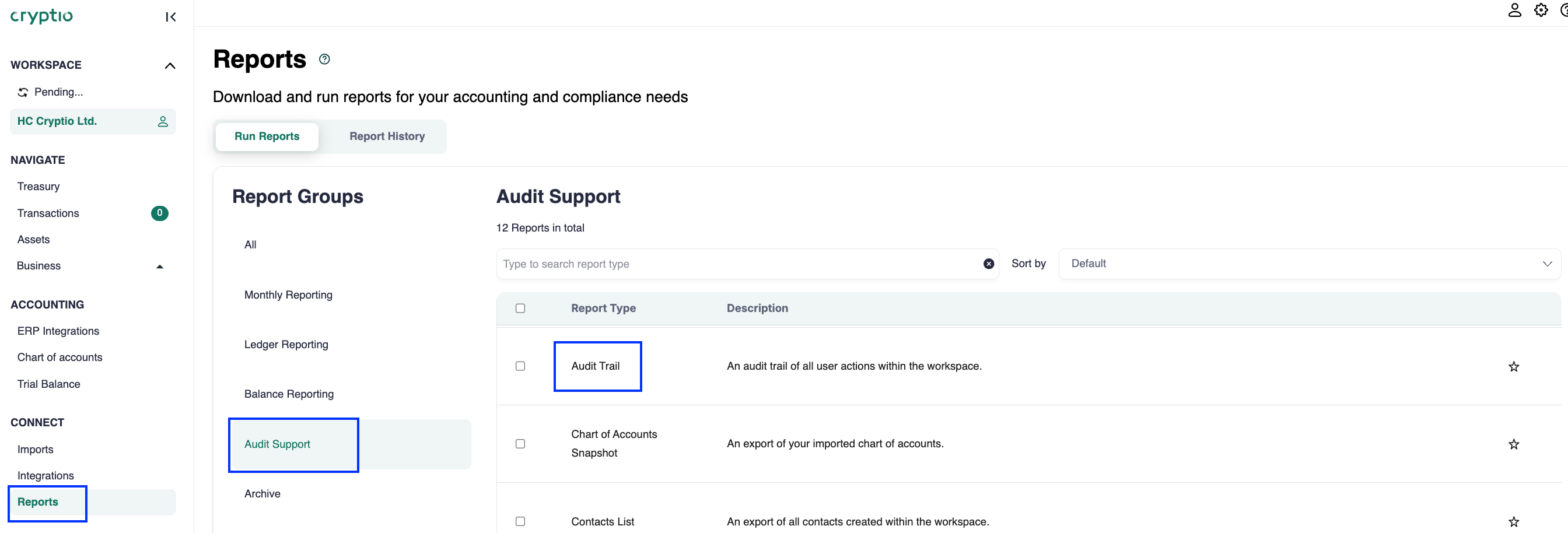
Under Connect, select Reports.
Type "Audit trail" and select the report.
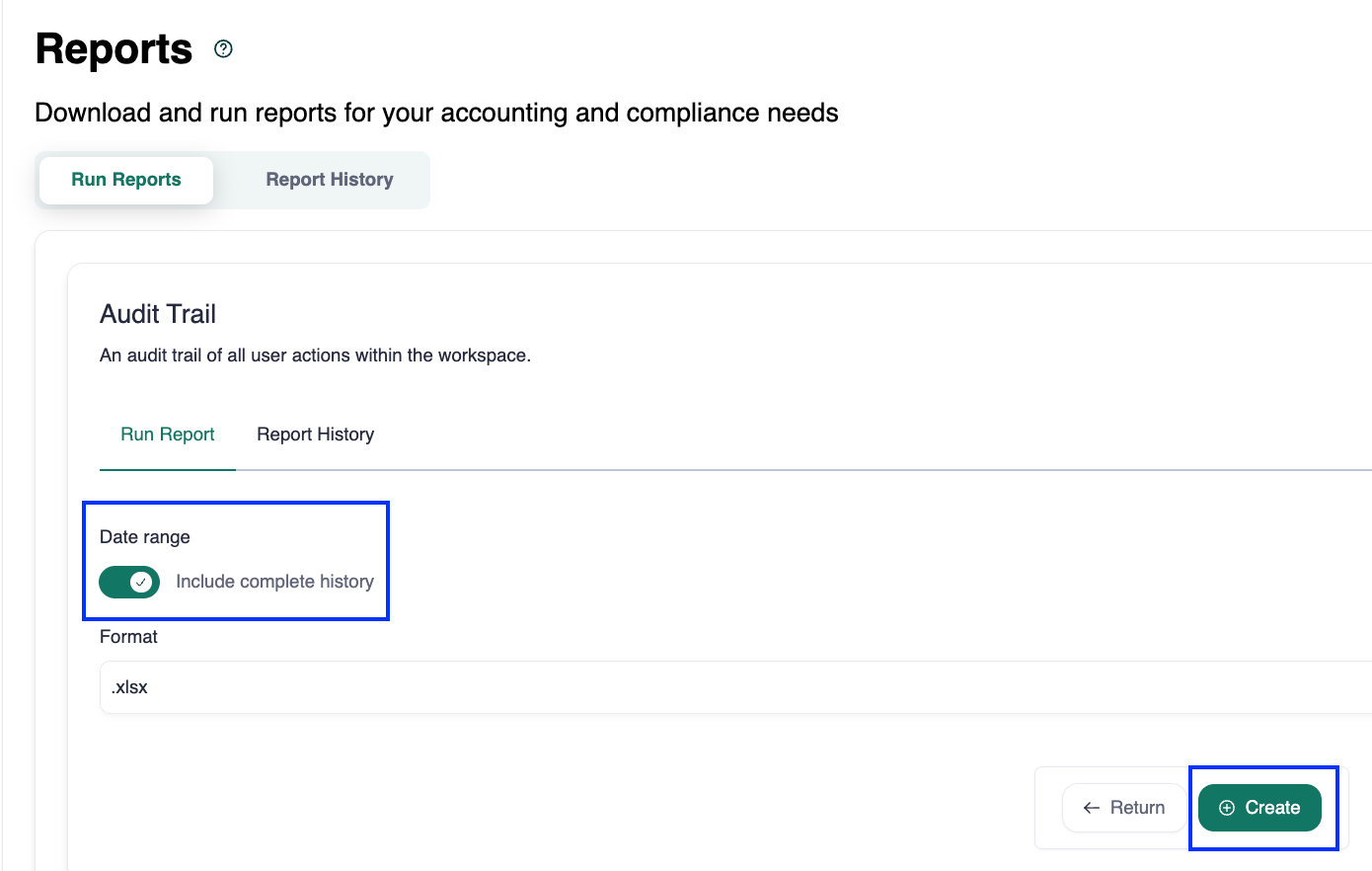
Select a date range, if desired. By default, it will select the entire workspace history.
Hit Create.
Here's an example of an Audit Trail report:
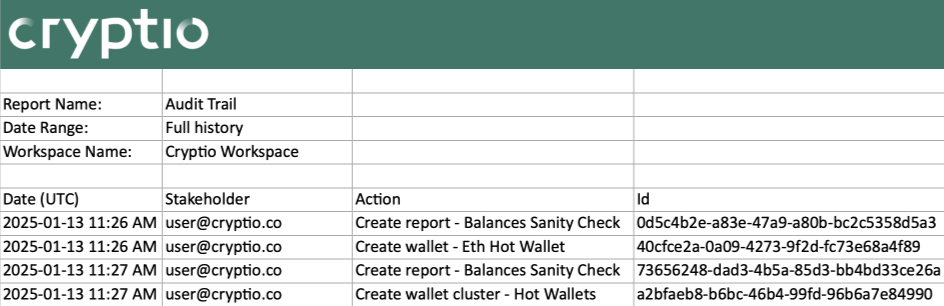
In this example, we can read the following information on the first event:
user@cryptio.cois the member of the workspace that triggered the actionThe action was performed on January 13th, 2025 at 11:26 AM.
The nature of the event is a report creation for a balance sanity check
The resource being affected is the reports
Each event in the Audit Trail report is also assigned a unique ID for reference
Limitations of the Audit Trail
While the report specifies each action, it does not always provide detailed information.
Example: if multiple transactions are edited in bulk, the entry will only display “Updated” or “Synchronized” without listing specific edits.
Actions are stored permanently and cannot be reverted from the Action History.
Accessing the Audit Trail (Audit Readiness Module only)
For customers with access to the Audit Readiness Module, the Audit Trail provides a high-level summary of actions taken. For a more detailed view, you can download and run the full report.
To access it:
Navigate to Audit Readiness Module → Controls & Risk → General Audit Trail.
When the report is ready, click on it.
Download it directly from the panel that opens.